Creating About Us Page for Games Site in Zurb Foundation
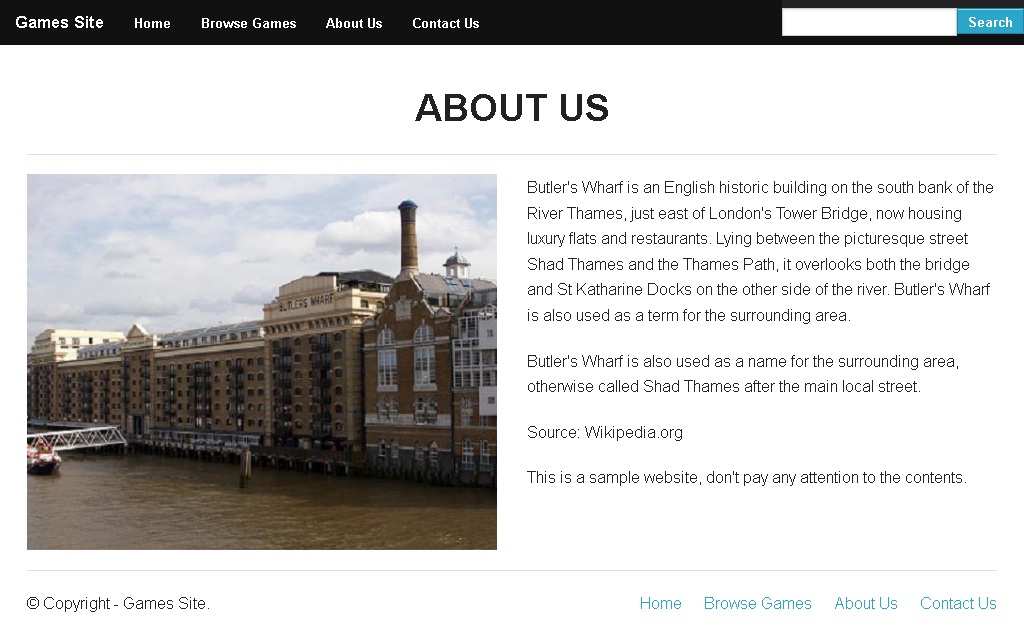
In the end of this unit, your About Us page will look like,

Step 3.1: Create a duplicate of the index.html file and name it as about.html.
Step 3.2: Open the about.html file in a HTML editor and delete everything inside the body tags except header, footer and the attached scripts.
Step 3.3: Save the file and open it in your favorite browser, the web page will look like,

Step 3.4: Use Foundation 4 Grids to create the about section like below.
Step 3.5: To create the gallery, we are going to use the element "Clearing" provided by Foundation 4.
	   <div class="large-12 columns">
    		<div class="row">
	  <div class="large-12 columns text-center">
	    <h3>IMAGE GALLERY</h3>
	    <hr>
	  </div>
	</div>

	<div class="row">
	    <div class="large-9 columns large-centered">
	            <ul class="clearing-thumbs" data-clearing>
	              <li><a class="th radius" href="img/1.png"><img style="height: 100px; width: 150px" data-caption="caption here..." src="img/1.png"></a></li>
	              <li><a class="th radius" href="img/2.png"><img style="height: 100px; width: 150px" data-caption="caption 2 here..." src="img/2.png"></a></li>
	              <li><a class="th radius" href="img/3.jpg"><img style="height: 100px; width: 150px" data-caption="caption 3 here..." src="img/3.jpg"></a></li>
	              <li><a class="th radius" href="img/freeimage-1827039-web.jpg"><img style="height: 100px; width: 150px" data-caption="caption 3 here..." src="img/freeimage-1827039-web.jpg"></a></li>
	            </ul>
	    </div>
	</div>
In the above code, I used Foundation 4 Clearing. Take a look at this Link to know more about clearing, You don't have to read the entire article, just take a look to have a general idea about Clearing.
Step 3.6: Save the file and open it in your favorite browser, the web page will look like,